PrintingCalendar

iPhone / iPad · iOS 15.0+

Pick a month.Print it on paper.

Choose a year and month, and print that month's calendar. Write on it by hand to keep track of your studies and goals.

Scan with your iPhone

PrintingCalendar

When it helps

What it does

  1. 01

    Pick a month and print

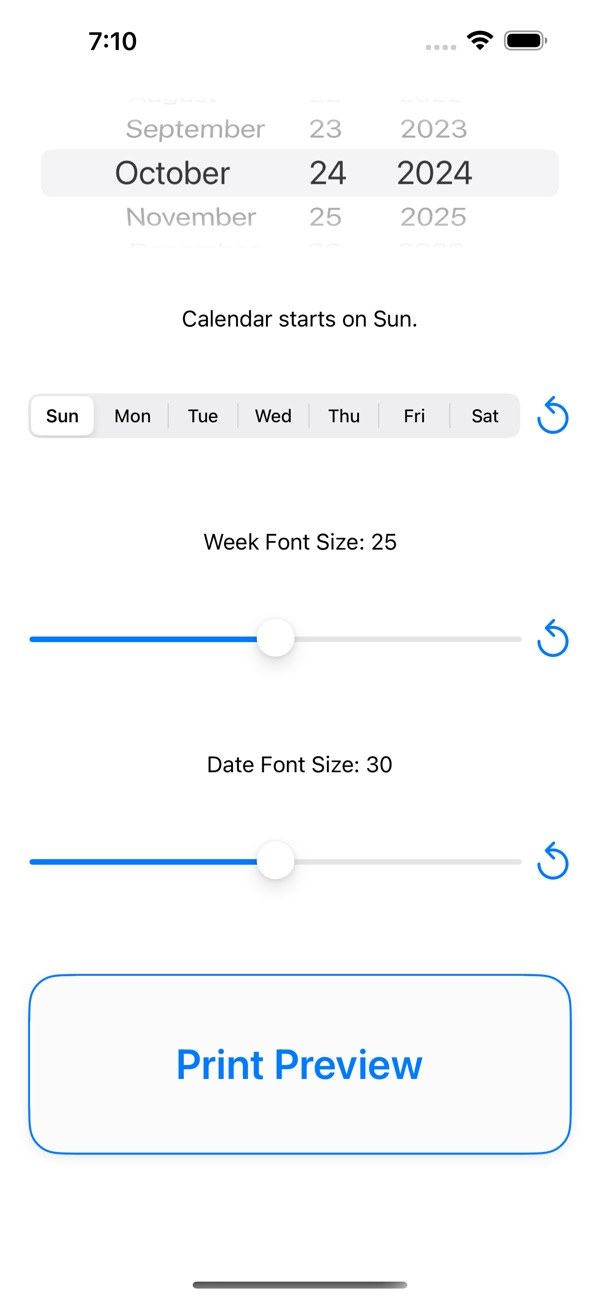
    Choose the year and month with the scroll wheels and tap Print Preview to see that month as a grid. You can print from there.

  2. 02

    Weeks that start on any day

    Set the first day of the week to anything from Sunday to Saturday, so a Monday-start or Wednesday-start layout is easy.

  3. 03

    Text size for weekdays and dates

    Separate sliders set the font size of the weekday labels and the date numbers. Smaller dates leave more room to write.

  4. 04

    Very few controls

    The screen has only the date picker, the start-day buttons, two size sliders and the Print Preview button, so getting to a printout is quick.

In detail

Pick a year and month to get a calendar
01

Pick a year and month to get a calendar

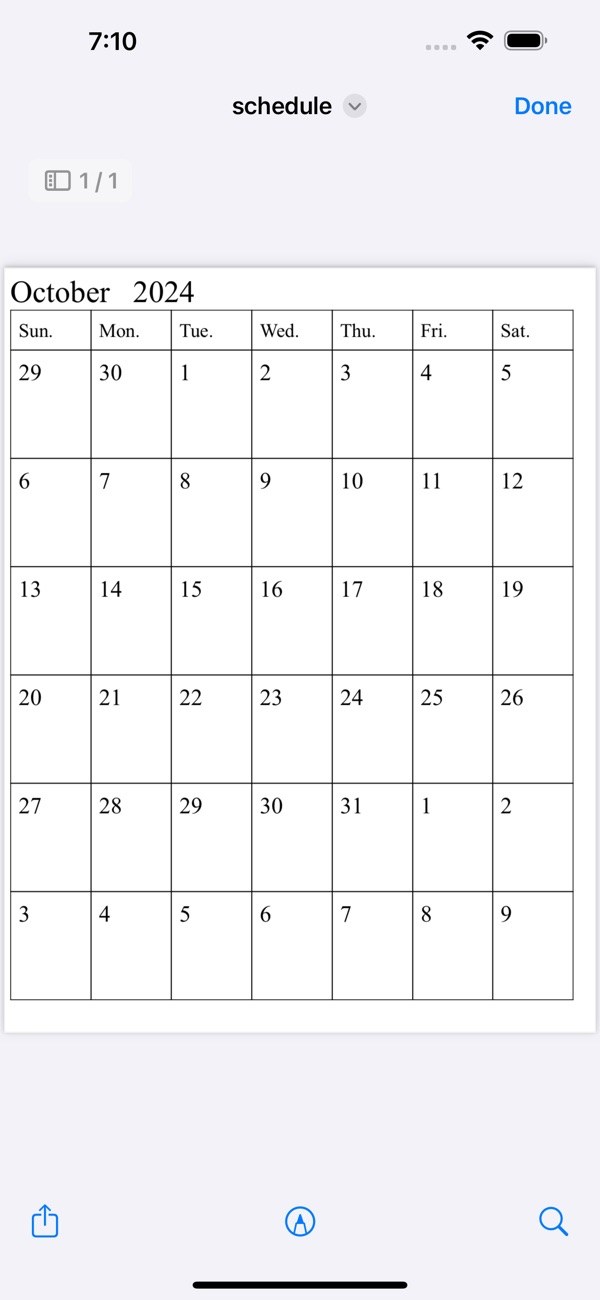
Choose the date with the scroll wheels, tap Print Preview, and the calendar for that month appears. There are very few controls to learn.

  • Scroll wheels for month, day and year
  • Print Preview button
  • A grid table for the month
Choose which day the week starts on
02

Choose which day the week starts on

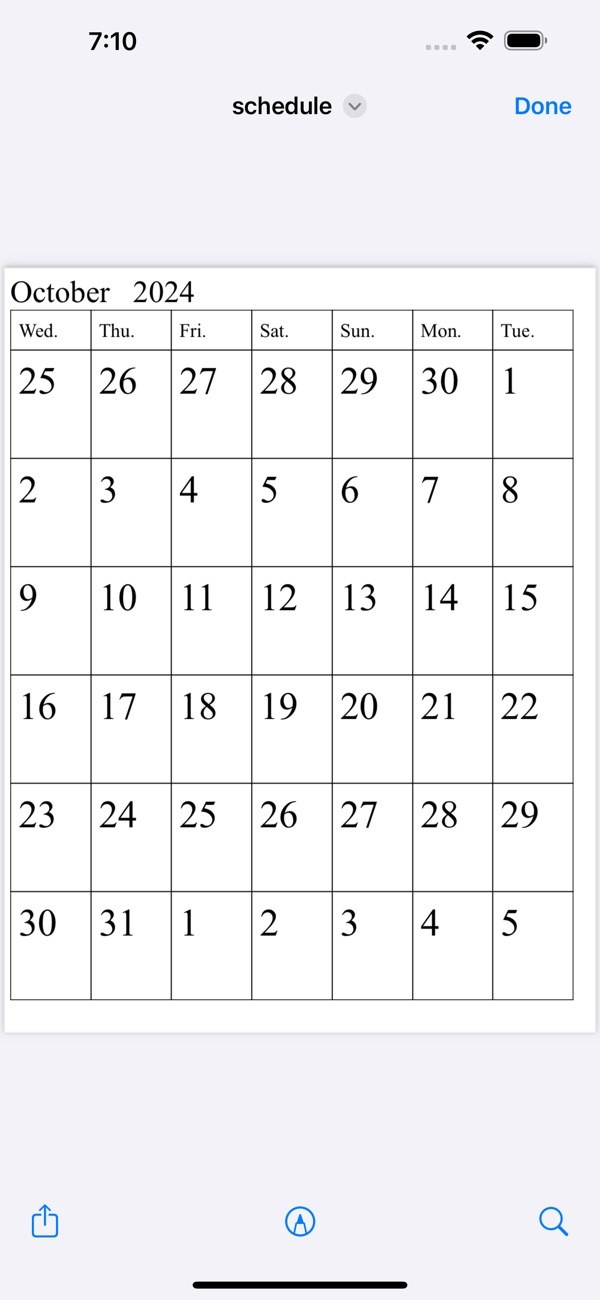
A button row lets you pick any weekday from Sun to Sat as the first column. Pick Wednesday, for example, and Wednesday becomes the leftmost day.

  • Seven choices, Sun to Sat
  • A reset button beside it
Set the text size for weekdays and dates
03

Set the text size for weekdays and dates

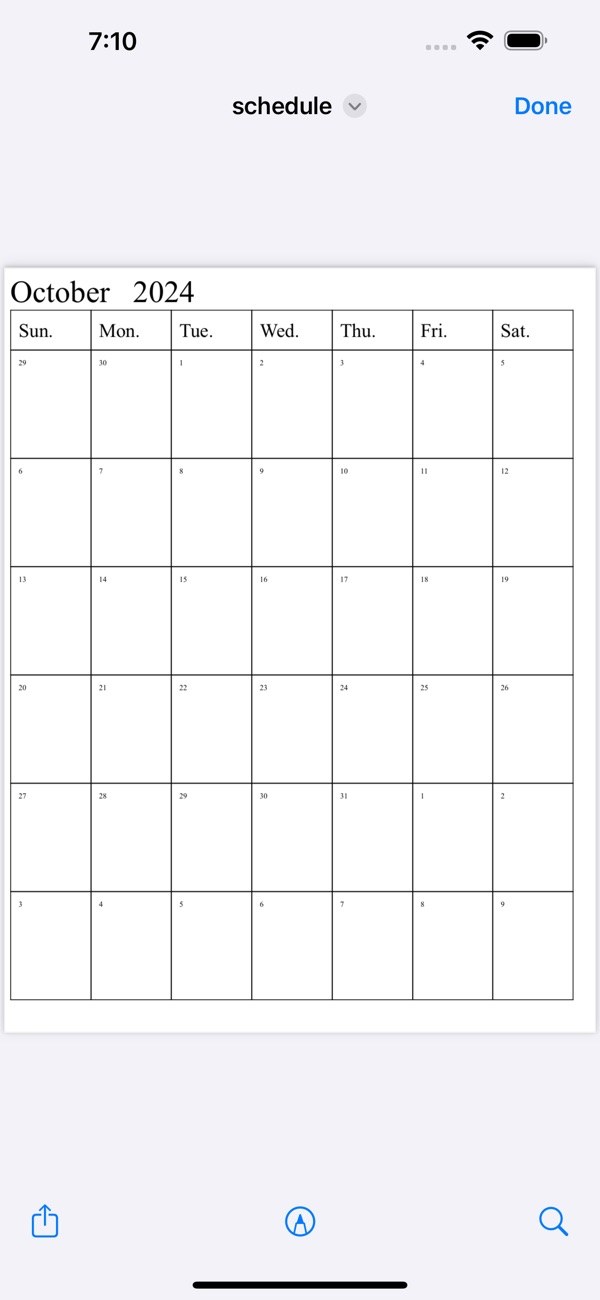
Two separate sliders control the font size of the weekday labels and of the date numbers. Smaller dates, for example, leave more of each box free for writing.

  • Week Font Size
  • Date Font Size
  • Reset button next to each slider
Go from preview to printing
04

Go from preview to printing

On the preview screen, tap the icon at the bottom left and then the print button. The screen also shows a markup icon and a search icon.

  • Print from the bottom-left icon
  • Close the preview with Done

How it works

  1. 1
    Choose the year and month

    Choose the year and month

    Use the scroll wheels at the top to pick the year and month you want to print.

  2. 2
    Tap Print Preview

    Tap Print Preview

    If you like, change the start day or the font sizes first. Then tap Print Preview.

  3. 3
    Tap the icon at the bottom left

    Tap the icon at the bottom left

    When the preview appears, tap the icon at the bottom left of the screen.

  4. 4
    Tap the print button

    Tap the print button

    Tap the print button in the options that appear, and the calendar is printed.

Screens

Set the month, start day and text size
Preview starting on Sunday
Smaller date numbers
Starting on Wednesday, larger dates

FAQ

What is the app for?

It prints a calendar on paper. Write directly on the printout to keep track of your studies, goals and the like.

How do I print?

Choose the year and month, tap Print Preview, tap the icon at the bottom left of the preview, then tap the print button.

Can the week start on Monday?

You can choose any weekday from Sunday to Saturday as the first day, including Monday.

Can I change the text size?

Yes. Separate sliders set the font size of the weekday labels and the date numbers, and a reset button next to each puts it back.

Does it cost anything?

The app is free to download and shows ads. The ads are served through Google AdMob.

Which languages are supported?

English, French, German, Italian, Japanese, Korean, Russian, Spanish and Chinese.

Which devices are supported?

iPhone and iPad, iOS 15.0 or later.

Print next month's calendar now.

Download on the App Store
PrintingCalendarGet